
Connectors and permissions
What it is
Your AI app can be linked to other accounts you use, so it can bring your emails, calendar events or files into a chat when you ask.
Each link to one account is called a connector, though apps call them different names. A connector has a few tools, each one action the app can take in that account, such as finding a day's events or adding an event.
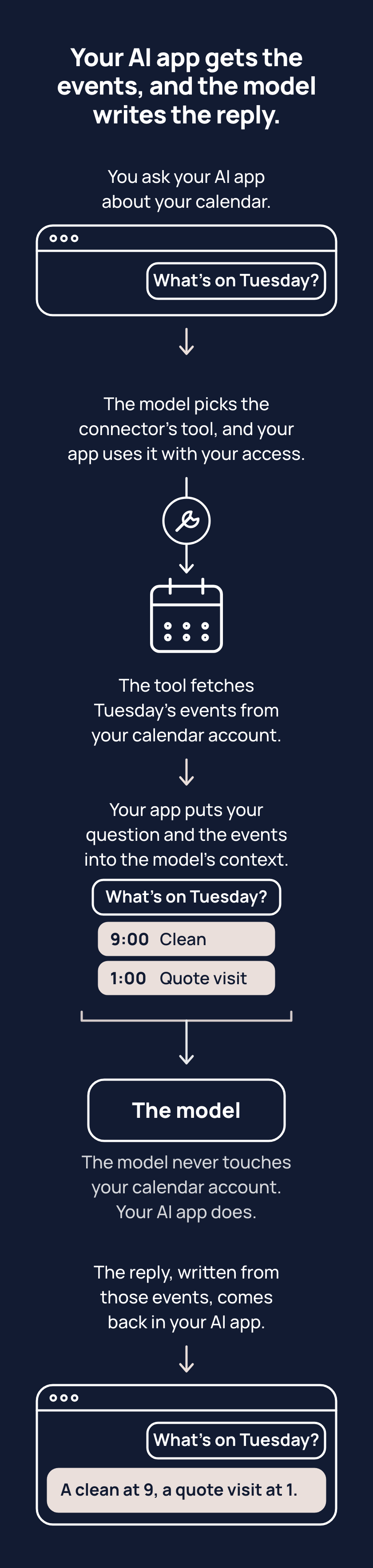
Say you ask what's on your calendar on Tuesday. The model can't reach your calendar, but your app told it the connector's tools, so it picks the one for finding a day's events.
Your AI app uses that tool with the access you gave when you connected your calendar, and the tool fetches Tuesday's events. The app puts them in front of the model with your question, as context. The model writes its reply from that.
The model never touches your calendar account; the app does, through the connector, when a request needs it.
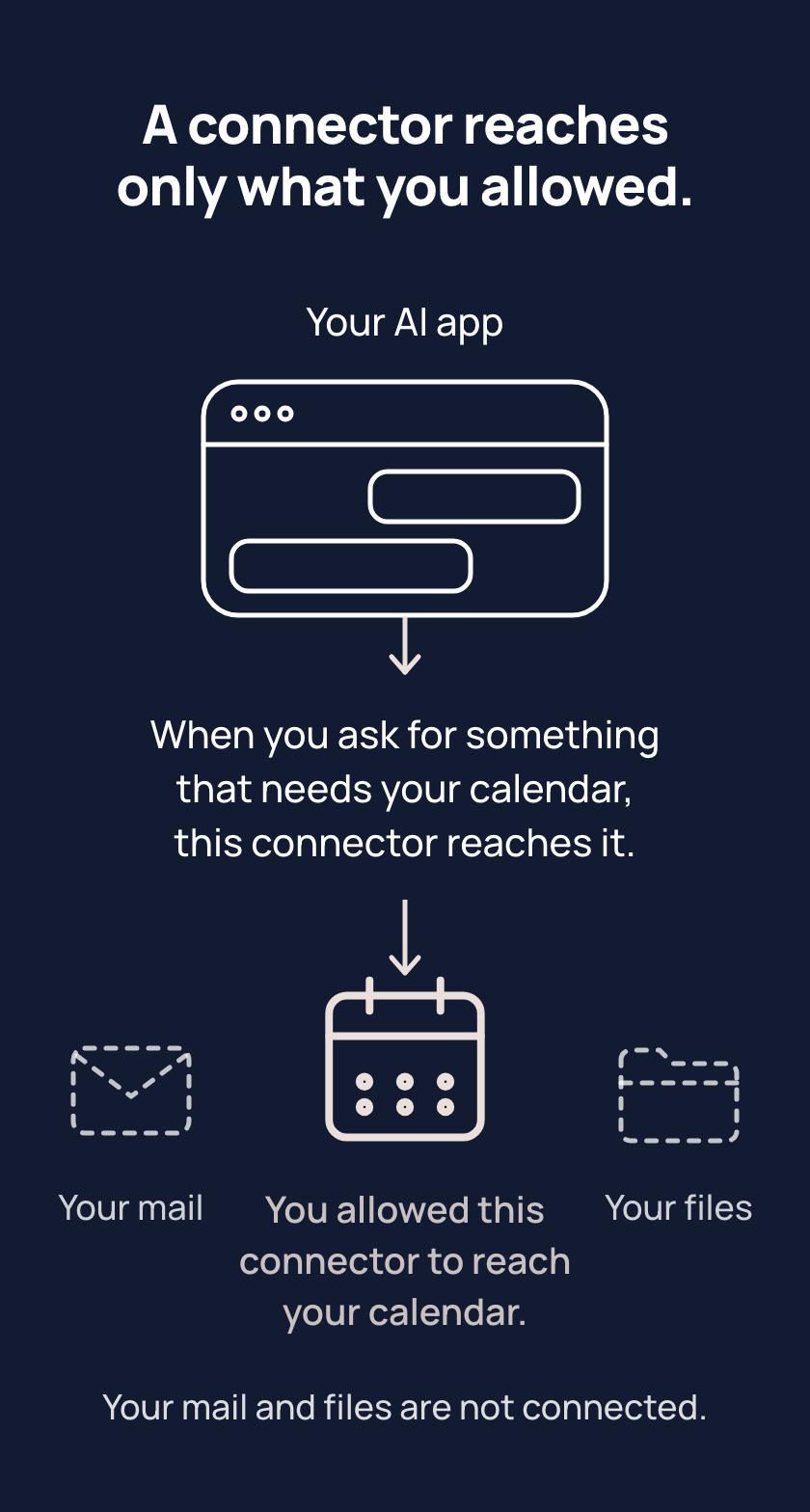
To connect an account, you sign in on that account's own page, usually in your browser, rather than typing the account's password into your AI app. Then a screen shows what your AI app wants to reach, and you choose what to allow, such as your calendar but not your email.
That choice is called a permission. A connector reaches only what your own account can, and only what you allowed. A permission is like a hotel key card that opens only the doors it was set for and can be cancelled.
Some tools only read; others can also make changes, such as sending an email. Many apps can ask you before a change, and you choose whether the app asks every time. Asking first doesn't narrow what the connector reaches; it adds your yes or no.
You can disconnect a connector in your app's settings or in the account's own list of linked apps, which stops new access but doesn't erase what's already in your chats or memory.
Tips
- Whenever you choose what a connector may reach, pick the narrowest choice that does the job, such as your calendar but not your email, or one project rather than all of them, because a connector reaches whatever you allow and nothing more.
- Whenever you add a connector that can make changes, check whether your AI app can ask you first and turn that on, because asking first lets you stop a change you didn't expect without disconnecting the connector.
Try it
- Go to your AI app's settings and find its list of connectors.
- If there is one, pick a connector and look at what it may reach.
- Check whether your AI app asks you before that connector's tools make a change.
You'll see what the connector reaches and whether your app asks first, or an empty list if nothing is linked. Either way, that list is every link your AI app has to your other accounts.
Risks
- You allow everything the screen offers when connecting an account, and the connector reaches your email and files when only your calendar was wanted. Choose the narrowest option, such as your calendar alone. A connector reaches only what you allowed, nothing you left out.
- The model picks a tool that makes a change, such as sending an email, and your AI app runs the tool without asking you. Turn on asking first for any connector whose tools make changes, so your app checks with you before each change.
- You disconnect a connector, and what the connector brought into your chats and your app's memory stays there. Delete a chat if the connector brought in things you would rather not keep, and delete the notes the connector left in the memory section of your app's settings.
- A setup screen in an app asks you to connect an account, and you connect without knowing what the connector fetches. Connect only once you can say what the connector will fetch; if you already did, disconnect it.
Why it matters
The model never touches your account, so from your account it sees only what a tool fetched. Linking an account is useful on your terms, because you decide what the connector reaches, whether your AI app asks first, and whether the connector stays connected.